
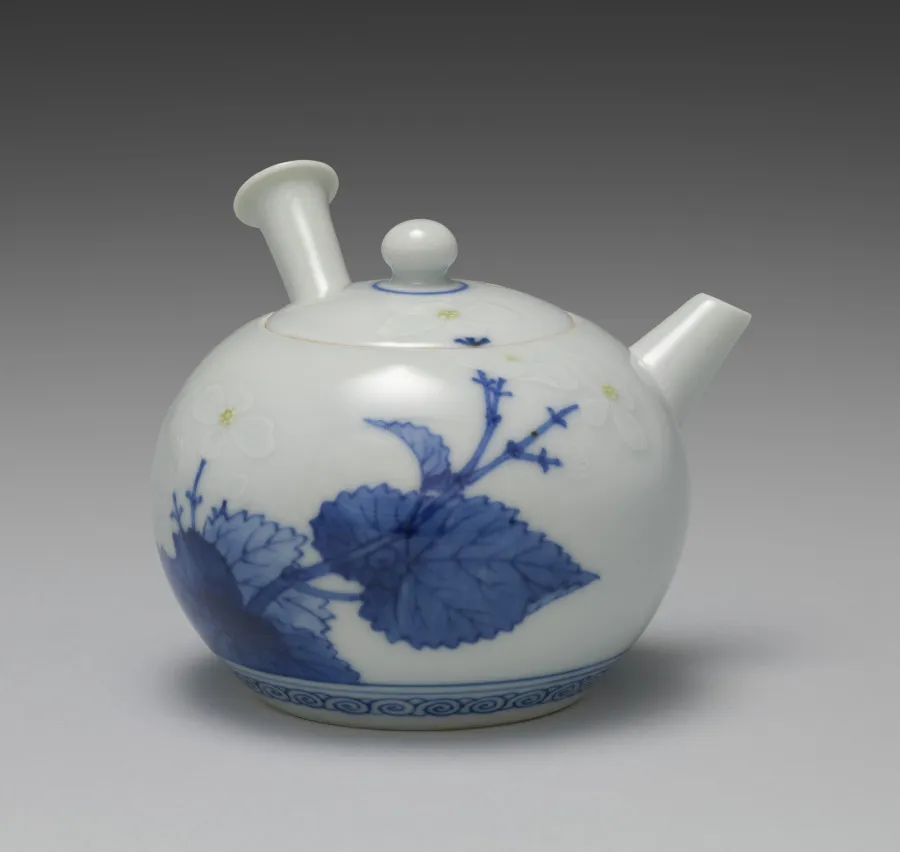
Photograph the physical product clearly
Use one product with a visible base and enough surrounding space to show the full silhouette. A three-quarter angle can reveal both the front and a side; soft lighting can make edges easier to distinguish. Highly reflective metal, transparent glass and deep black glossy packaging can be difficult because a photograph contains reflections rather than an unambiguous surface. A second reference photograph can help a human reviewer, but this workflow submits a single source image. Do not describe the result as photogrammetry or a measured scan. Retain the original photograph so the generated form can be compared with the product instead of judged only by a pleasing render.
Review a concept before preparing a production asset
The product preset starts with a lower texture and mesh budget for an initial review. The requested 100,000-face target is not a guarantee that the output has exactly that number of triangles or is ready for a game engine. A useful first result should have a readable silhouette, plausible proportions and no obvious invented parts. Check whether a cap, handle, seam or opening has been fused into the main body. If the model changes a feature that identifies the product, fix the source or edit the model before using it in public material. A more expensive quality preset should follow a shape decision, not replace it.
Treat text, logos and back surfaces as review items
Single-image reconstruction can preserve some visible colour while inventing the unseen rear. Printed ingredients, logos and small labels are particularly sensitive: a texture may look convincing from a distance while its letters are wrong. Do not use a generated label as evidence of a real product claim. For accurate packaging, apply the approved artwork in a 3D editor and inspect the UV layout. Keep the verified artwork outside the AI generation step so a later model revision does not silently rewrite it. If an exact closure, thread or mating surface matters, use measured modelling rather than relying on the photograph to supply its dimensions.
Choose the format required by the next editor
GLB is useful for a self-contained textured preview. Keep the original file when materials and texture images matter. The converter on this page extracts geometry into OBJ; it does not include a companion MTL file or copy the GLB textures into a folder. That makes it suitable for a geometry handoff, not a complete material-preserving package. Confirm the receiving editor accepts the selected format, inspect the model after import, and set the intended unit convention there. Source coordinates are preserved during conversion. A model authored in metres remains in its original coordinates; the browser preview fitting is only a display transform.
Measure what a listing or asset bundle promises
Before selling or sharing an asset, inspect the actual polygon count, texture dimensions and file sizes. The requested generation settings are useful context but are not a substitute for measuring the result. Open the GLB in the linked inspector, then test it in the software named in the deliverable. Decide whether the package includes just the model, rendered previews, editable materials, animation or any source images. If only an OBJ is supplied, say that textures are not included. Give buyers a real screenshot of the reviewed asset instead of using the input product photograph as if it were a render of the downloaded model.
Keep asset creation separate from product advertising
A product model can support a later render or interactive viewer, but this workflow does not produce a complete listing image set, four-ratio advertising pack or a sales video. For those tasks, choose a product-image or advertising workflow with the required output controls. Use this page when the handoff is an actual 3D file that someone will inspect or edit. Review the provider terms and your rights to the product design, marks and photographs. Generated geometry should not be presented as dimensionally exact or suitable for engineering, replacement parts or manufacturing without an independent measured workflow.
Common questions
Is the output an editable CAD solid?
No. The workflow produces a generated mesh. It does not create a parametric solid with dimensions, sketches, manufacturing tolerances or a feature history.
Does the OBJ contain the GLB textures?
No. This local conversion exports geometry. Keep the original GLB for its materials and images, or prepare an explicit material package in your 3D editor.
Will opening the preset start a paid job?
No. It prepares the existing Studio draft. You review the image, account access and displayed credit cost before submitting generation. Converting your own GLB locally does not use generation credits.