
2D Image to 3D Model: Turn Flat Art into a GLB
A 2D image to 3D model workflow starts from flat art, such as an illustration, a piece of concept art, a render, a sprite, or an icon, and gives back a textured mesh you can spin around. Flat art carries less depth information than a photograph, so the quality of the result depends on how clean the picture is and on how much of the object it actually shows.
Ready to try it? Open the AI 3D Generator, upload one image, and run the default Pixal3D job. New accounts get 220 signup credits, which cover one default job (see what it costs).
What counts as a 2D image here
Anything that is a single, flat picture of one subject:
- Character illustrations and concept art
- Product renders and 3D-software screenshots
- AI-generated pictures of a creature, prop, or vehicle
- Logos, mascots, and icons
- Game sprites and pixel art
If your picture is a photograph of a real object, the photo to 3D model guide covers shooting tips and the failure cases that are specific to photos.
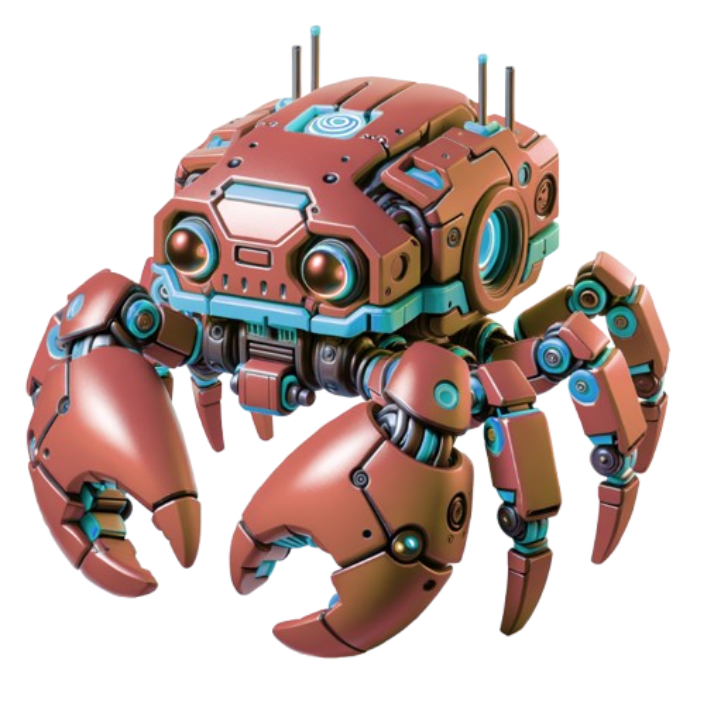
The picture above is one of the official reference images from the upstream Pixal3D project: a single subject, fully in frame, on a transparent background. That is the shape of input to aim for, whatever the art style.
How a flat picture becomes a 3D shape
Pixal3D, the TencentARC model behind the Pixal3D lane, "explicitly lifts pixel features into 3D through back-projection" (official repository). For flat art, that means the visible side of the result follows your drawing closely, and the model infers depth from outlines, shading, and perspective cues. It is a reconstruction guess, not a measurement, and the less depth information the picture contains, the more the model has to fill in.
Prepare your art
Give it a clean silhouette
The outline is the strongest cue the model gets. Export the art on a transparent background (PNG or WebP with an alpha channel) or on one solid color that does not appear in the subject. The upstream code runs a background-removal model on images that have no alpha channel, so a transparent export spares the pipeline that guess. Keep the whole subject in frame with a small margin: a cropped hand or tail stays cropped.
Use flat, neutral lighting
Painted shadows and highlights become part of the base color texture. If the art has a strong light from the left, that light is baked into the GLB and will look wrong when you light the model differently in a game engine or renderer. Even, soft shading gives the cleanest texture.
Pick a pose with depth cues
A three-quarter view tells the model more about thickness than a perfectly flat front view or a side-on profile. Separate limbs from the body where you can, and avoid extreme perspective or exaggerated foreshortening, which can warp proportions in the mesh.
Send one view, not a model sheet
The hosted workspace conditions on a single image. A character sheet with front, side, and back views on one canvas is read as one confusing picture, not as three views. Crop the best single view and use that.
Keep text and line-only art in mind
Lettering inside the art becomes texture and loses its sharpness. Black-and-white line art with no fill gives the model no color or material to work from, so colorize it before you convert.
What the model invents on the back side
A flat picture shows the front of the subject and nothing else. Whatever sits behind it, such as the back of a head, the rear of a jacket, or the underside of a vehicle, has no pixels to project, so the model fills it in with a plausible guess. Typically that means smoother, more generic geometry on the far side, and details that exist only in your drawing, like a pattern on the chest, are not carried over to the back.
What to do about it:
- Orbit the GLB in the viewer and look at the back before you rely on it.
- If the back matters, create or paint art from a three-quarter angle that shows more of it, and convert that version.
- Expect to sculpt or retexture the far side in Blender when you need exact detail there.
The workspace also lists a second image-to-3D lane, Trellis 2, which can read thin parts and structure differently. Compare lanes in the 3D AI guide.
Logos, icons, and pixel art
A flat logo has almost no depth cues, so a converted logo tends to look like a rounded relief or a thin slab. If you need exact thickness, bevels, and clean edges, extrude the vector shape in Blender or a CAD tool; it is faster and fully predictable. Use image-to-3D for mascots and characters instead.
Pixel art and sprites are converted as pictures, not voxelized. The pixel grid does not become a block grid. For the difference between voxels and texels, read the 3D pixel guide.
Photo input vs 2D art input
| Photograph | Flat 2D art | |
|---|---|---|
| Depth cues | Real lighting and perspective | Painted, stylized, or missing |
| Typical risk | Glass, reflections, thin parts, clutter | Baked-in shading, flat logos, inconsistent perspective |
| Back side | Inferred from the front | Inferred from the front |
| Best prep | Plain background, soft light, three-quarter angle | Transparent background, flat shading, one full-body view |
What you get
The Pixal3D lane returns a GLB: a mesh with PBR texture maps such as base color and roughness, previewable in the page and downloadable. Free browser tools convert it for the next step: GLB to OBJ for Blender and Maya, and GLB to STL for 3D printing checks (geometry only; textures are dropped). The GLB Inspector shows mesh and material counts.
If you do not have art yet, the AI Image Generator can create a single-subject picture to convert.
What it costs
- Signup credits: new accounts get 220 one-time credits, valid for 30 days. The default Pixal3D job costs 220 credits, so the signup grant covers one default job.
- Sign-in is required. If you pick an image before signing in, the workspace keeps it and starts the job after you sign in.
- Settings change the price. The Pixal3D lane runs from 180 to 390 credits depending on the settings you choose, and the cost is shown before you run.
- More credits: see the pricing page.
Who runs this
pixal3d.ai is an independent hosted service that runs the open Pixal3D model through the Fal provider and adds accounts, credits, and tools. It is not the official Tencent research demo. The AI wrapper disclaimer explains the boundary.
Start with your cleanest single view: open the AI 3D Generator and upload it.
FAQ
Can I turn a drawing or illustration into a 3D model?
Yes. Upload one clean image of one subject, such as an illustration, concept art, or a render, and the Pixal3D lane returns a textured GLB. The visible side follows your art; depth and the far side are inferred.
What does the model do with the back side?
A flat image shows only the front, so the back has no pixels to project and is filled in with a plausible guess. Expect smoother, more generic geometry there, and check the back in the viewer before relying on it.
How should I prepare the image?
Use a transparent or solid background, a clean silhouette, neutral shading without strong painted shadows, the whole subject in frame, and a three-quarter pose with visible depth cues. Send one view rather than a multi-view model sheet.
Will a flat logo become a clean 3D logo?
Not reliably. A flat logo has almost no depth cues, so the result tends to be a rounded relief or thin slab. For exact thickness and bevels, extrude the vector shape in Blender or a CAD tool instead.
Does pixel art become voxels?
No. Pixel art is converted as a picture, so the pixel grid does not become a block grid. The 3D pixel guide explains the difference between voxels and texels.
What does it cost to try a 2D image?
New accounts receive 220 one-time signup credits, valid for 30 days. The default Pixal3D job costs 220 credits, so the signup grant covers one default job. Sign-in is required, and the Pixal3D lane costs between 180 and 390 credits depending on settings.
Related 3D guides and workspaces
- Photo to 3D ModelHow to shoot a photo that converts well, what fails, and what the GLB contains.
- 2D Image to 3D ModelPrepare illustrations, renders, and sprites, and know what the back side invents.
- 3D Pixel: Pixel-Aligned Image to 3DPixel-aligned criteria, source-image checks, and voxel/texel resolution for a GLB.
- 3D AI: AI 3D Model GenerationChoose between Pixal3D, Trellis 2, and Hunyuan Motion before spending credits.
- Image to 3D Model GeneratorPixel-aligned image-to-3D with GLB preview, PBR textures, and motion output.
- AI Image Generator WorkspaceText-to-image, image-to-image, and photo editing in one hosted workbench.
- AI Video Generator WorkspaceSeedance 2.0 text-to-video, image-to-video, and reference-to-video.